Hey Guys,
One thing we all think about is how to design a simple solution to a complicated requirement and so today lets see how to create a Narrative report for a 1:M relation. As you may know Narrative Report can be used only on one record. But, using a combination of reports, we can do the a LOT more!
All we need to do is create 2 reports linked to each other and add them to a Dashboard. let me show you how.
Step 1: Create a Opportunity Parent Report
Using Opportunities Subject Area (Reporting or Real-Time) Add the fields you would like to use on the Opportunity Information Section of the Quote report.

In Step 2: Create Layout, Add a Narrative View and use the this code
Opportunity Parent Narrative View Code. Make sure you use the @"Number" symbol in the right places, or the values would display against the wrong columns.

You'll notice that the values are not correct in this preview, don't worry. since this report is not being filtered from the Prompt yet, the right values do not appear.
Save the report
Step 2: Create a Opportunity Product Report

Using Opportunity Product Revenues Subject Area (Reporting or Real-Time) Add the fields you would like to use on the Product List.
Note that I am filtering the contents of this report based on the results of the Opportunity Parent Report.
In Step 2: Create Layout, Add a Table or Pivot Table (Whichever works for you) and a Narrative View and use the this code Opportunity Parent Product Narrative View Code.

You'll notice that the values are not correct in this preview, don't worry. since this report is not being filtered from the parent yet, the right values do not appear.
OK. Save the Report.
Step 3: Create a Dashboard
Create a New Dashboard and give it a name. In the Design Section add both the above reports.

Save the Dashboard.
Step 4: Create a Web Link (Last Step)
Create a Web Link on Opportunity and in the URL text area, add the link to your Dashboard you created in Step 3. You can get the URL by Viewing the Source Code
Ex: https://secure-ausomxxxx.crmondemand.com/OnDemand/user/analytics/saw.dll?Dashboard&PortalPath=%2fshared%2fCompany_XXXXX_Shared_Folder%2f_portal%
2fOpportunityQuote+Report&Options=rfd&Action=Navigate&P0=1&P1=eq&P2=Opportunity%2E%22Opportunity%20ID%22&P3=%%%Id%%%
The %%%Id%%% will dynamically change on clicking the Web-Link from your Opportunity Detail Page and display the Opportunity and Opportunity Product Information on your Quote Report
Make sure you test the URL by Adding a Opportunity ID and running the URL in your browser.
After creating the Web-Link, add it onto your Opportunity Layout.
Finally: Let's see how this report works in reality.
Goto any Opportunity that has at least One Product associated
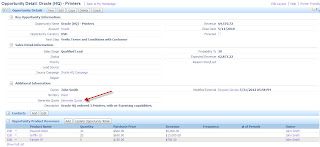
Now click the "Generate Quote" link that you added. You should now see your Opportunity and Opportunity Product Information in a beautifully formatted Quote Report.

Now, it's time for you to go and impress your customers!
If you have any questions about the post, feel free to add your comments!
Cheers!
Ryan
One thing we all think about is how to design a simple solution to a complicated requirement and so today lets see how to create a Narrative report for a 1:M relation. As you may know Narrative Report can be used only on one record. But, using a combination of reports, we can do the a LOT more!
All we need to do is create 2 reports linked to each other and add them to a Dashboard. let me show you how.
Step 1: Create a Opportunity Parent Report
Using Opportunities Subject Area (Reporting or Real-Time) Add the fields you would like to use on the Opportunity Information Section of the Quote report.

In Step 2: Create Layout, Add a Narrative View and use the this code
Opportunity Parent Narrative View Code. Make sure you use the @"Number" symbol in the right places, or the values would display against the wrong columns.

You'll notice that the values are not correct in this preview, don't worry. since this report is not being filtered from the Prompt yet, the right values do not appear.
Save the report
Step 2: Create a Opportunity Product Report

Using Opportunity Product Revenues Subject Area (Reporting or Real-Time) Add the fields you would like to use on the Product List.
Note that I am filtering the contents of this report based on the results of the Opportunity Parent Report.
In Step 2: Create Layout, Add a Table or Pivot Table (Whichever works for you) and a Narrative View and use the this code Opportunity Parent Product Narrative View Code.

You'll notice that the values are not correct in this preview, don't worry. since this report is not being filtered from the parent yet, the right values do not appear.
OK. Save the Report.
Step 3: Create a Dashboard
Create a New Dashboard and give it a name. In the Design Section add both the above reports.

Save the Dashboard.
Step 4: Create a Web Link (Last Step)
Create a Web Link on Opportunity and in the URL text area, add the link to your Dashboard you created in Step 3. You can get the URL by Viewing the Source Code
Ex: https://secure-ausomxxxx.crmondemand.com/OnDemand/user/analytics/saw.dll?Dashboard&PortalPath=%2fshared%2fCompany_XXXXX_Shared_Folder%2f_portal%
2fOpportunityQuote+Report&Options=rfd&Action=Navigate&P0=1&P1=eq&P2=Opportunity%2E%22Opportunity%20ID%22&P3=%%%Id%%%
The %%%Id%%% will dynamically change on clicking the Web-Link from your Opportunity Detail Page and display the Opportunity and Opportunity Product Information on your Quote Report
Make sure you test the URL by Adding a Opportunity ID and running the URL in your browser.
After creating the Web-Link, add it onto your Opportunity Layout.
Finally: Let's see how this report works in reality.
Goto any Opportunity that has at least One Product associated

Now click the "Generate Quote" link that you added. You should now see your Opportunity and Opportunity Product Information in a beautifully formatted Quote Report.

Now, it's time for you to go and impress your customers!
If you have any questions about the post, feel free to add your comments!
Cheers!
Ryan


